How to create a Gmail account without a phone number
Google calls the phone number optional, but it doesn't always show the Skip button. Where to sign up so it does, what to do when Google insists, and the step most people forget.
Yes, you can. Google's own help page lists the phone number as optional when you make a new account. The catch is that Google decides, every single time, whether to show you the Skip button. Some people see it. Some don't. And the same person can get a different answer on a different day.
This guide shows where to sign up so the Skip button is more likely to show up, what to do when Google insists on a number anyway, and the one step almost everyone forgets once the account is made.
The short answer
- Sign up on a phone if you can, from your phone's settings or the Gmail app, on home Wi-Fi.
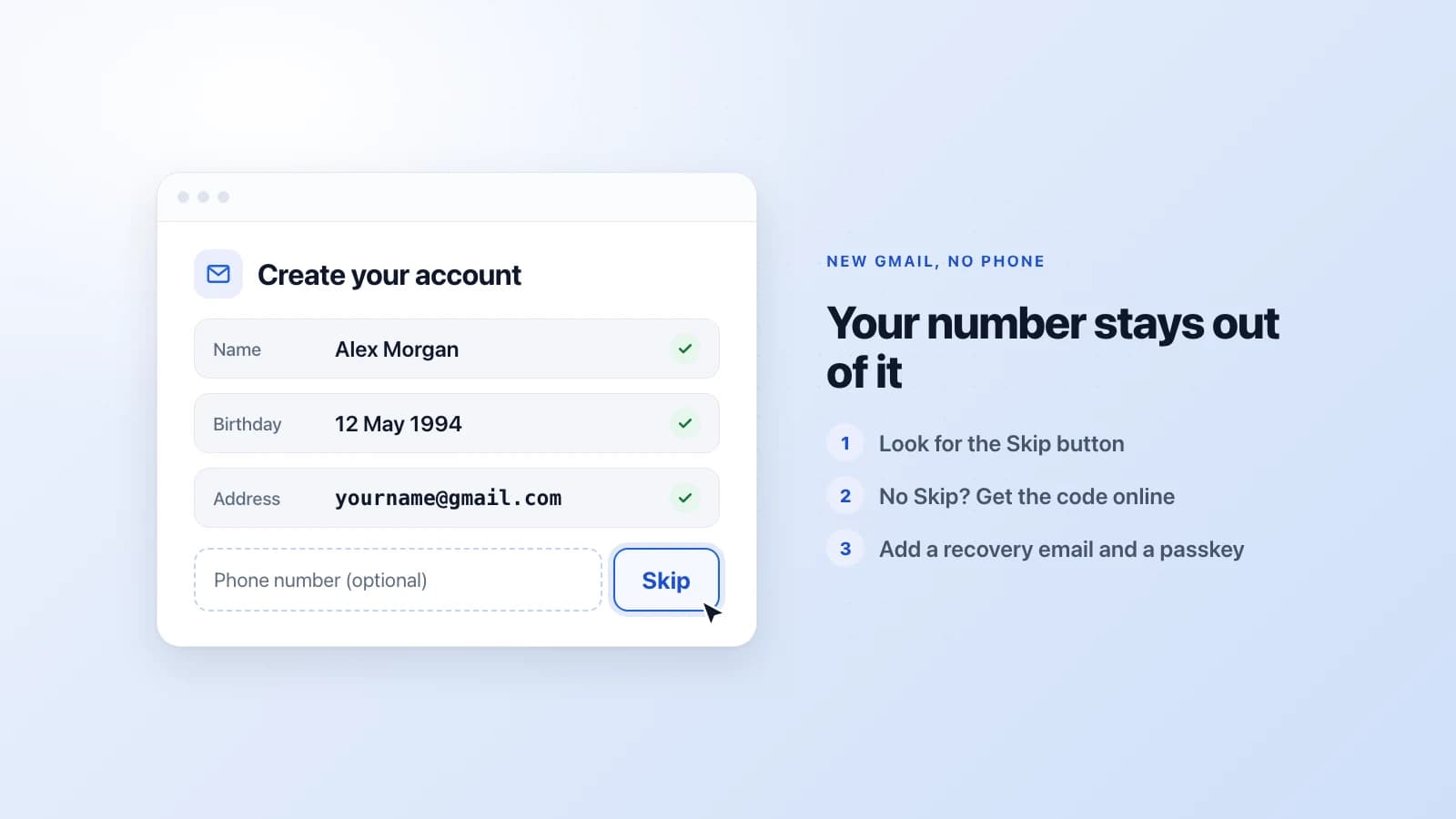
- Look for Skip under the phone number box. If it's there, tap it and move on.
- No Skip, and Google wants to text you a code? Any number that can receive an SMS will do, including a temporary one you rent for a few minutes.
- Google shows a QR code and asks you to send a text? Then you need a real phone that can send an SMS. A number that only receives messages can't get you past that screen.
- Before you close the tab, add a recovery email and a passkey.
Why Google asks for a number at all
It isn't personal. Google gets a flood of fake sign-ups from bots and spammers, and a phone number is a cheap way to slow them down. A real person usually has one number. A bot farm needs thousands.
So Google looks at each sign-up and makes a guess. A phone on home internet, making one account, looks like a person. A browser behind a VPN that just made three accounts looks like a bot. The more you look like the first case, the more likely you are to see Skip.
A few small things help:
- Use your normal internet. Home Wi-Fi or your mobile data. Turn off any VPN or proxy for the few minutes it takes.
- Make one account at a time. Several sign-ups in a row from the same place is the clearest bot signal there is.
- Use your real birthday. Some guides tell you to pretend you're a child. Don't. Google then makes a supervised account that a parent has to manage, which is not what you want.
- Have a second email address ready. Any address you already use, from any provider. Google treats it as another way to reach you.
Three places to sign up
You don't have to start on the Gmail website. There are three doors into the same sign-up, and they don't always ask the same questions.
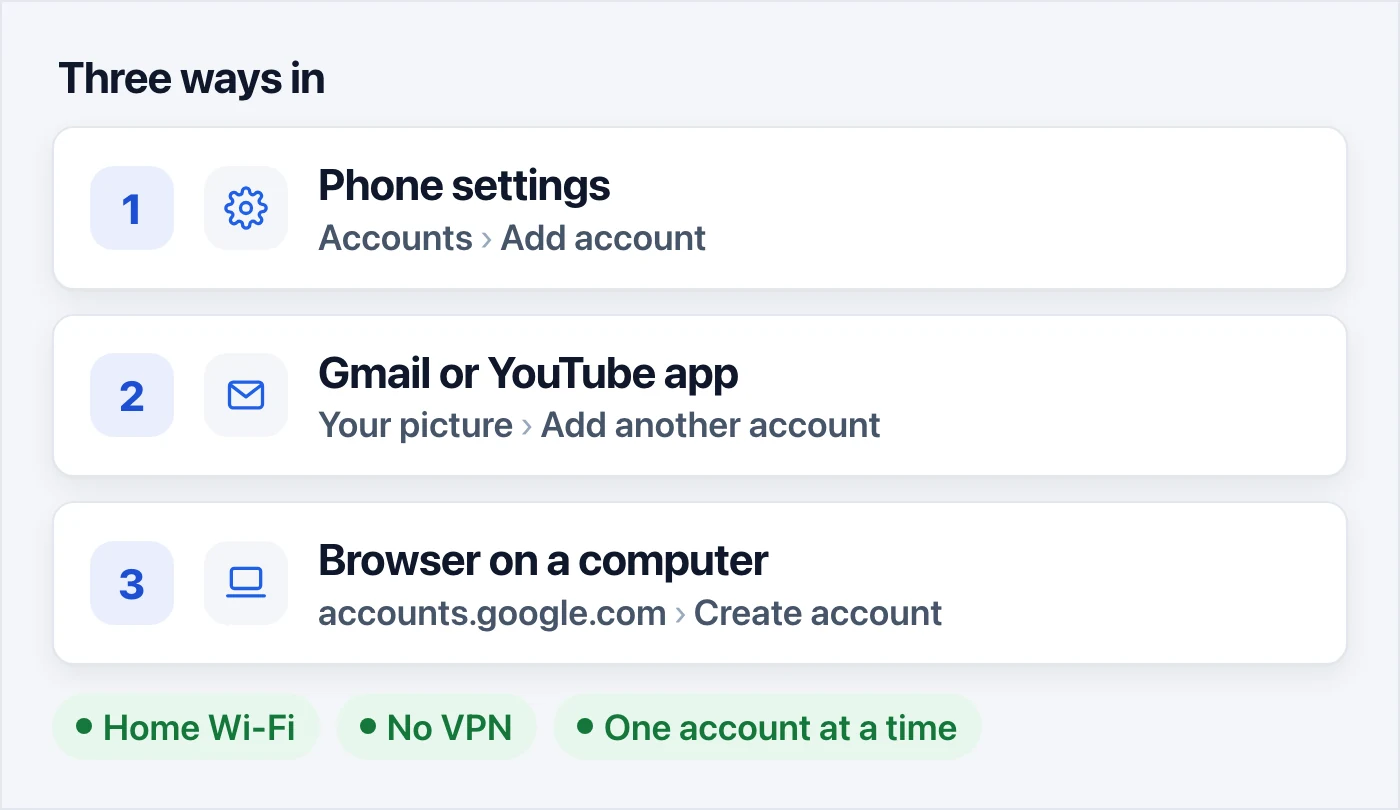
- Your phone's settings (Android). Open Settings, then Accounts (on some phones it's called Passwords & accounts), then Add account, then Google. Tap Create account.
- The Gmail or YouTube app (Android or iPhone). Tap your profile picture in the top corner, then Add another account, then Create account.
- A browser on your computer. Go to accounts.google.com and choose Create account.
People see the Skip button more often on a phone than in a desktop browser. There's no promise either way, though. If one door asks for a number, close it and try another one later.
Creating the account, step by step
The screens are the same whichever door you use.
- Choose Create account, then For my personal use.
- Type your first and last name.
- Enter your birthday and gender.
- Pick a Gmail address. Google suggests a few, or you can make up your own.
- Create a password. Make it long, and don't reuse one from another site.
- The phone step. Google asks you to add a phone number. Look under the box for a Skip button. If you see it, tap it.
- Add a recovery email when Google asks. This screen has a Skip button too. Don't use this one.
- Check the summary, agree to the terms, and your new inbox opens.
If step 6 had a Skip button, that's it. You have a Gmail account and Google never saw a phone number. Jump down to the last big section, about keeping the account safe.
What you might see at the phone step
If there's no Skip button, Google shows you one of two screens instead. They look alike, but they need very different things from you.
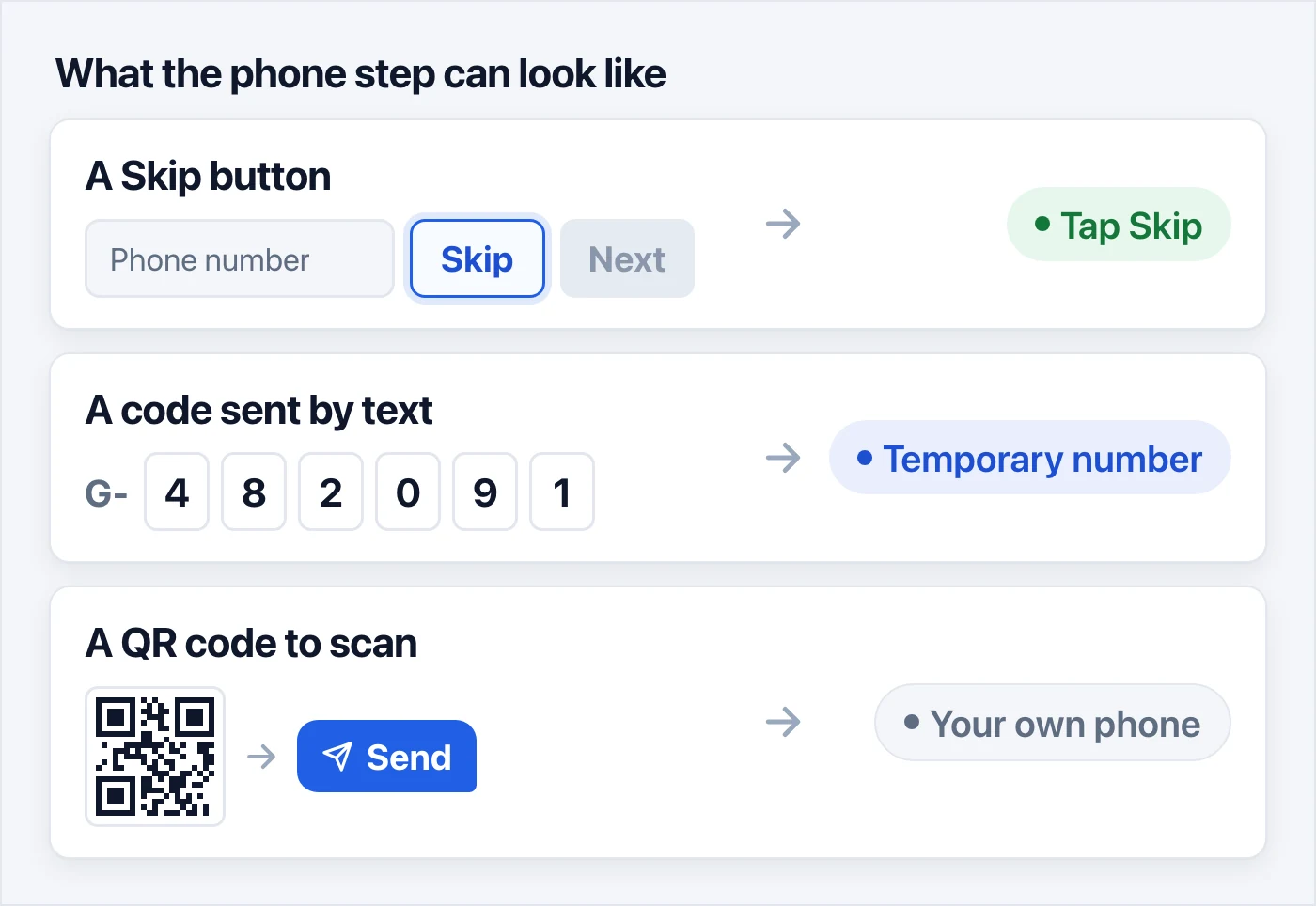
"Verify your phone number." You type in a number, Google texts it a six-digit code, and you type the code back in. All you need here is a number that can receive a text for a minute or two. It doesn't have to be yours.
"Verify some info before creating an account," with a QR code. You scan the code with a phone, and the phone opens a ready-made text message to Google. You tap send. This one needs a phone that can send a text, so a number you can only receive on won't get you through. It also shows Google the number you sent from. If you'd rather keep your number out of it, close the page and try again later from another door. The QR screen doesn't come up every time.
Getting the code with a temporary number
If Google wants to text you a code and you'd rather not give it your own number, a temporary number does the job. It's a real mobile number you rent for a few minutes, and the text shows up on a web page instead of on a phone.
Here's how it works on 1001SMS:
- Open the Google page, pick a country, and order a number.
- Type that number into Google's phone box and tap Next.
- Wait for the code to appear on the page, usually within a minute or two, and type it into Google.
If no code comes, cancel and the money goes straight back to your balance. You pay for a code that arrives, not for trying.
Sometimes Google answers with "This phone number cannot be used for verification." That means Google has seen that number, or numbers like it, too many times. It isn't something you did wrong. Cancel, pick a different country, and try again.
One thing to keep in mind: the number is only yours for those few minutes. After that it goes back into the pool, and someone else can rent it. That's fine for getting through the door, but it means you should never leave it on your account. Which brings us to the part everyone skips.
The step everyone forgets: keep the account yours
Most people stop here, happy with their new inbox. Then months later Google asks them to prove it's really them, and they have no way to.
Google doesn't ask often, but it does ask. Signing in on a new laptop, from another country, or after a long break can all trigger it. When that happens, Google needs a way to reach you that isn't a password. Five more minutes today saves you a locked account later.
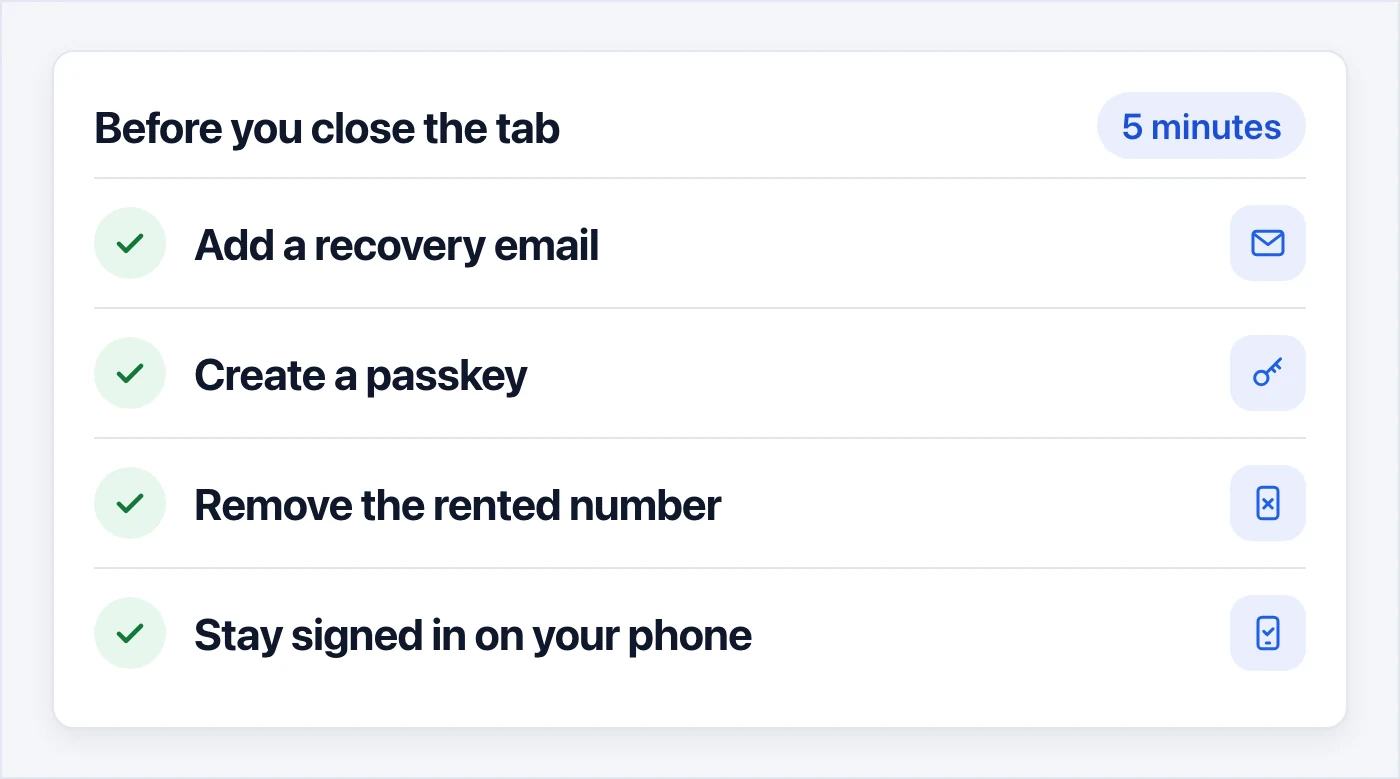
- Add a recovery email. If you skipped it while signing up, add it now. Tap your profile picture, then Manage your Google Account, then Security, and add a recovery email there.
- Create a passkey. A passkey lets you sign in with your phone's fingerprint, face or screen lock instead of typing a password. It's also one of the ways Google can check it's you. You'll find it on the same Security page, in the part about how you sign in to Google.
- Remove the rented number, if you used one. Look for it on the Security page (Recovery phone) and under Personal info (Phone), and remove it wherever it shows up. Someone else will rent that number later, and you don't want a stranger's inbox to be a way into your account.
- Stay signed in on your phone. A phone that's already signed in is the easiest way for Google to check it's you. It just pops up an "Is it you trying to sign in?" message on it.
Want a phone number on the account for the long run, without using your own? Rent a virtual number instead. It stays yours for as long as you keep paying for it, so Google can still reach you on it next year.
Quick answers
Is it allowed to make a Gmail account without a phone number? Yes. Google's own help page lists the phone number as optional. What Google doesn't allow is making lots of accounts to send spam, with or without a number.
Can I make a Google account without a Gmail address? Yes. On the screen where you pick an address, choose "Use your existing email" instead. You get a Google account for YouTube, Google Drive and the rest, tied to an email address you already have. You just don't get a Gmail inbox with it.
Will Google ask for my number later? It might, if a sign-in looks unusual. A recovery email and a passkey give Google other ways to check it's you, so it's much less likely to insist on a phone.
Why did my friend get the Skip button and I didn't? Google decides for each sign-up, based on the device, the internet connection and how many accounts were made from it recently. Try another door from the list above, on home internet, a bit later.
In short
Start on your phone, look for Skip, and if Google insists on a code, rent a number for the few minutes it takes. Then add a recovery email and a passkey before you do anything else with your new inbox. That last part is what keeps the account yours.